



Speckle has launched a sweeping product update that positions the platform as a more intelligent, scalable, and connected hub for architecture, engineering, and construction (AEC) teams. The release introduces a built-in AI assistant, a completely rebuilt WebGPU-based 3D viewer, powerful new reporting capabilities, enhanced data connectivity, and broader support for industry tools and file formats.
Together, these changes aim to help teams extract insights faster from complex model data, handle larger projects more reliably, and keep stakeholders aligned through shareable, living documents.
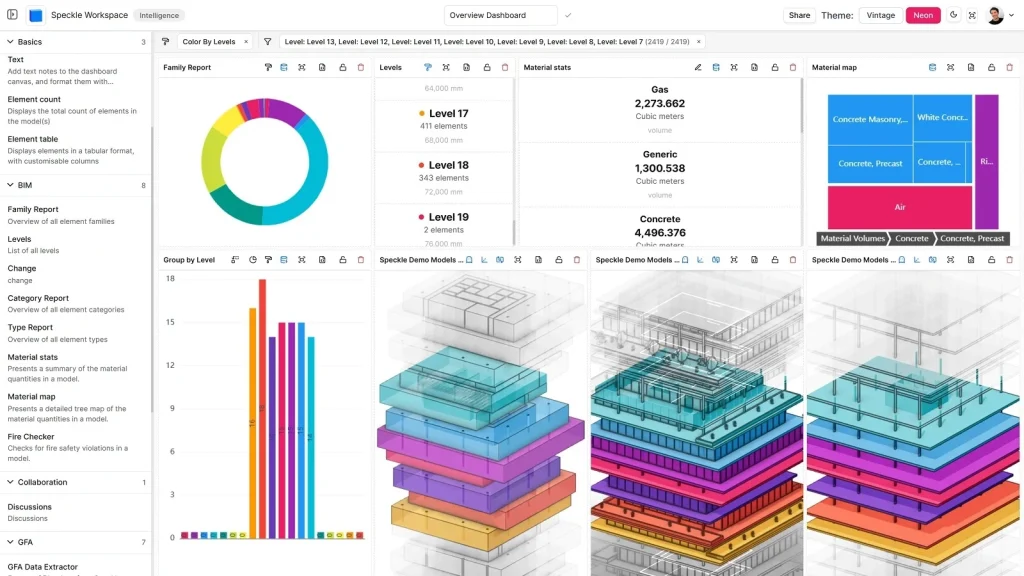
Speckle Introduces a Built-in AI Assistant
At the heart of the update is Speckle’s new AI assistant, now embedded directly in the web application. Unlike generic chatbots, this assistant works exclusively with the model data users have already published to Speckle. It runs read-only queries and returns answers as plain text, interactive charts, key performance indicators (KPIs), and tables generated on demand.
The system goes well beyond basic geometry and properties. Users can ask about version history, who published specific updates, differences between model versions, project issues and comments, metadata, labels, and even remaining AI credits in the workspace.
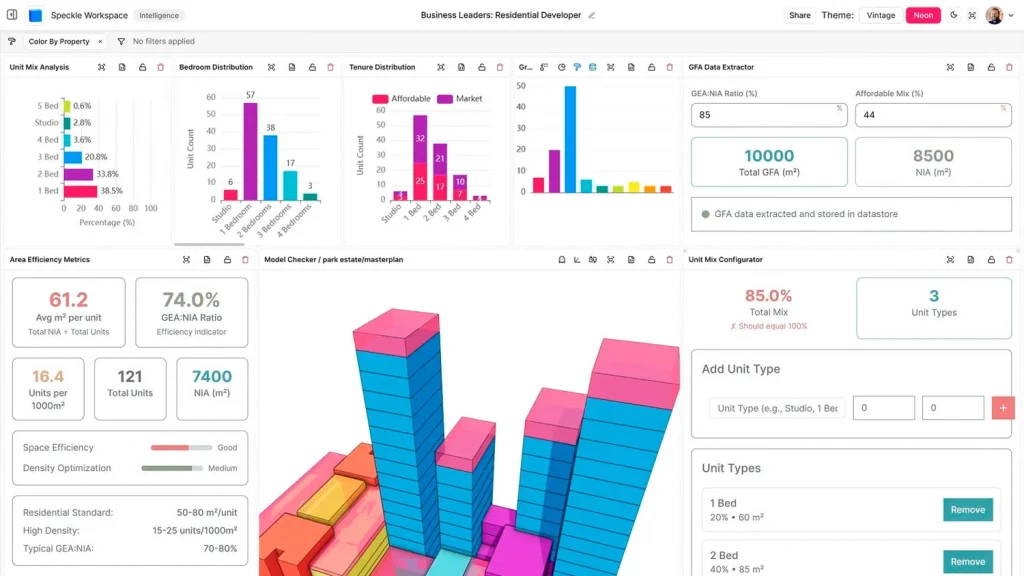
Context is flexible and practical. Users can attach a specific published model to a conversation, upload CSV or Excel files and query them with SQL alongside model data, or bring in documents such as PDFs, Word files, or plain text for the assistant to reference. Attachments can be added through the composer’s file menu, by simple drag-and-drop, or via an @ mention picker that searches the workspace’s documents.
Conversations themselves are persistent and shareable, either with everyone on the project or via a public link. The chat history clearly indicates where each conversation originated (project page, viewer, or report editor), making it easy to resume work in the right context.
Turning Chat Answers into Editable, Shareable Reports
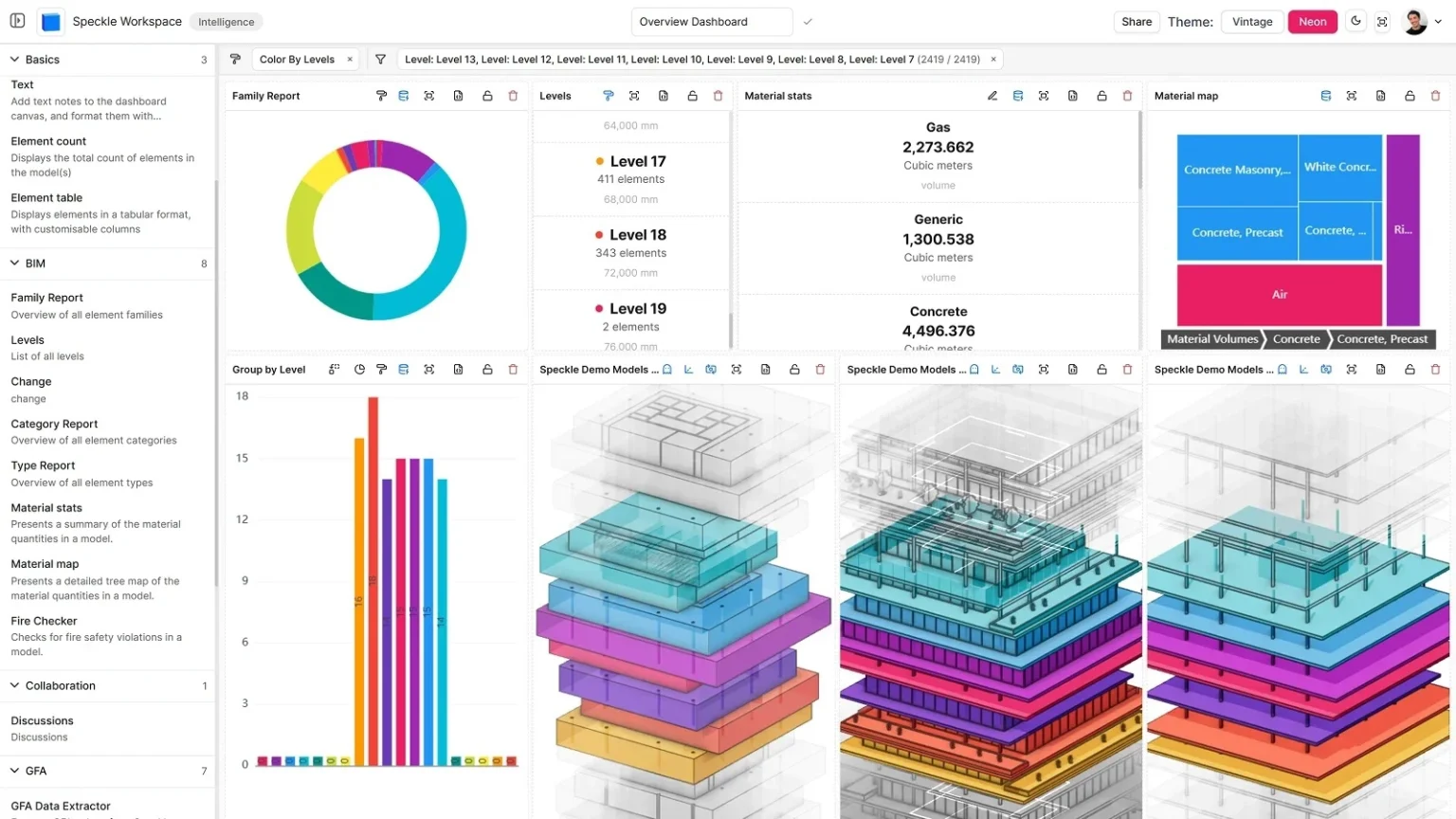
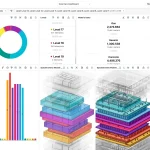
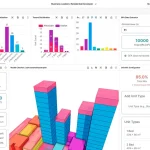
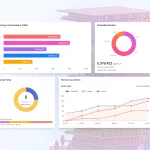
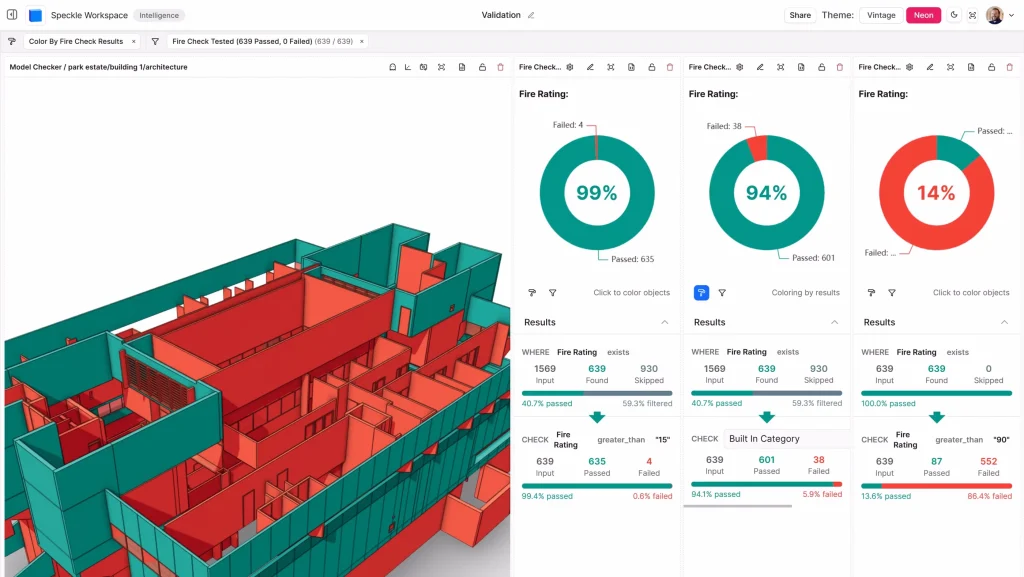
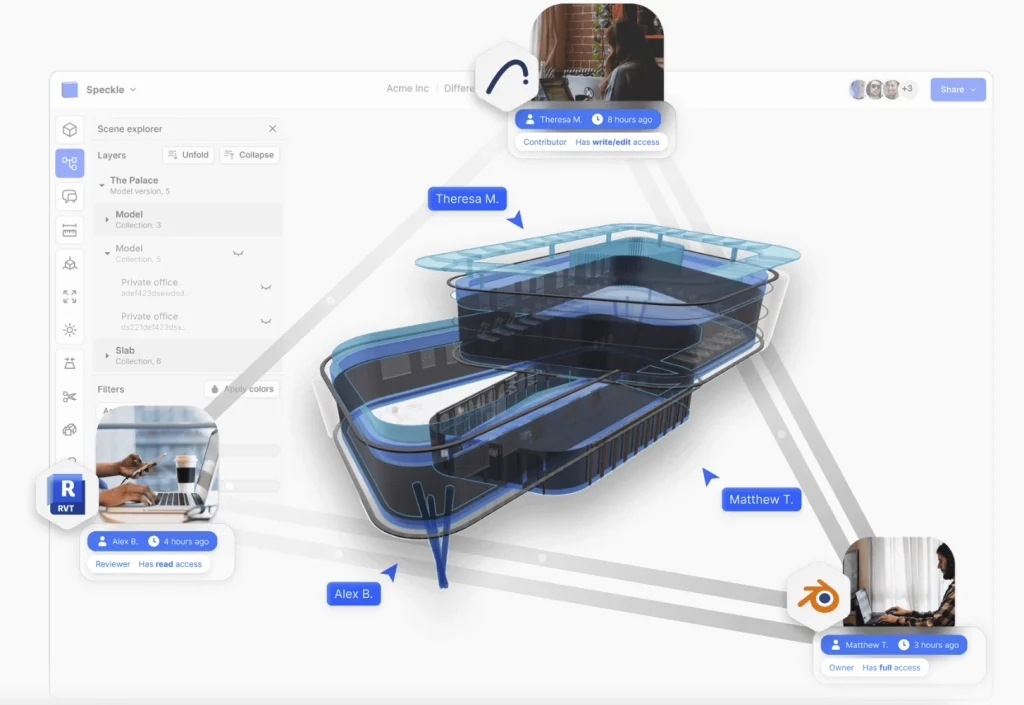
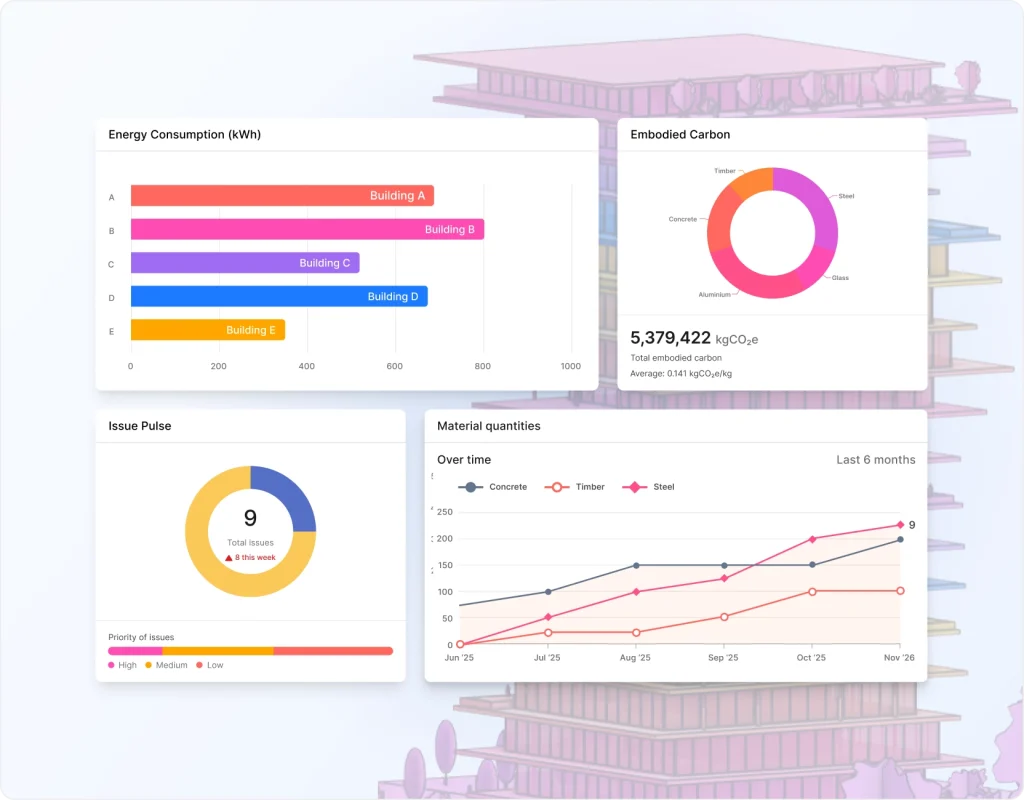
One of the most practical extensions of the AI is the ability to turn any chat answer into a full report. Reports are saved pages containing KPIs, charts, tables, text blocks, and embedded 3D views. They live under the project alongside models and can be shared with the project team or through public links.
Once saved, reports remain fully editable. The dedicated report editor supports direct manipulation; users can move, resize, retitle, or reconfigure any block, and it includes its own chat panel. Selecting a block and describing a desired change prompts the assistant to edit that block in place. AI-generated edits appear on an unsaved working copy for review before saving, and entire batches of AI changes can be undone in one step.
Reports also support interactive inputs. Controls for numbers, currencies, percentages, and dropdowns feed the underlying queries, so changing an input value instantly recomputes the affected charts and numbers for anyone viewing the report. Each report records the documents and data sources used in its creation.
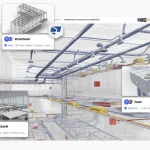
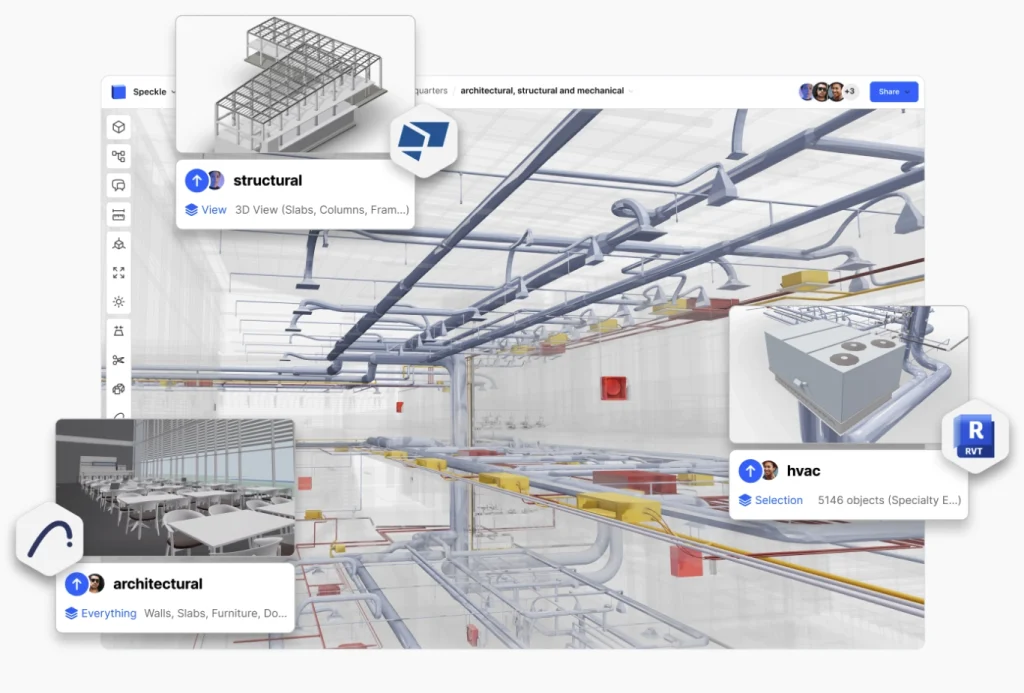
Additional capabilities that shipped with the feature include embedded 3D viewer blocks that can federate multiple models into a single view, tabbed reports that repeat a layout across a set of models for side-by-side comparison, and version-diff content that calculates numbers, charts, and tables based on what was added, removed, changed, or moved between two versions.
Share links are tightly bound to the report: they grant access only to the data currently shown, update when the report is edited, and are revoked if the report is deleted. Every saved report also maintains a link back to the original conversation that generated it.
AI Comes to the 3D Viewer
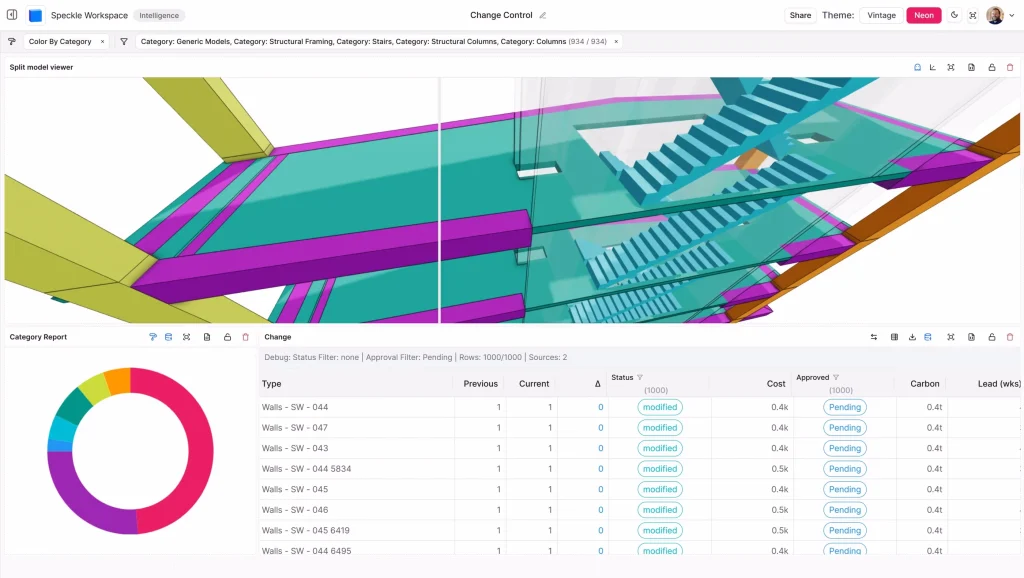
The AI assistant is equally powerful inside the new 3D viewer, accessible via a sparkle button. This chat understands the live viewer state, including which models are loaded, what is currently selected, the scene tree, and active filters, so questions such as “what is this?” or “how many of these are on level 3?” are resolved against the exact content on screen. Beyond answering questions, the assistant can operate the viewer itself.
It can isolate or hide objects, color the model by property, select elements, set section planes, and move the camera. Prepared views are staged off-screen and delivered as a sequence of viewpoints, ensuring the camera is never yanked while a user is working. Requesting a tour produces a narrated viewpoint sequence generated in the background.
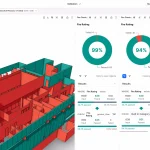
The viewer chat suggests relevant starter questions based on the loaded models, retains conversation history across sessions, and can even analyze a screenshot of the current view when visual context is needed. Data validation checks can also be run and saved directly from this interface.
Skills: Saved Assistants for Recurring Questions
To support recurring questions, Speckle introduces Skills, saved assistants that bundle instructions, optional knowledge files, and warehouse tables. Skills are invoked simply by typing /skill-name in any conversation. They can be written manually or created from an existing chat with a “save as skill” action, after which anyone in the workspace can use them. The assistant proactively suggests matching workspace skills when a user’s question aligns with one.
External Data, Files, and Warehouse Connections
External data support has been significantly expanded. Workspaces now feature a data source library where uploaded CSV and Excel files become queryable tables that the assistant can join with model data. Images, PDFs, and text documents are also supported as readable context.
Sources can be attached per conversation and persist for reuse across the workspace. Snowflake and Databricks can be connected as warehouse sources; their tables function in chat, report bindings, and skills. Saved and shared reports automatically re-attach the warehouse sources they depend on when rendered.
Usage, Credits, and Governance Controls
Governance and usage controls keep the new capabilities manageable. AI features are opt-in at the workspace level: an admin enables them, records acceptance of terms of use, and can disable them at any time. Consumption is metered against a workspace credit pool, with a usage panel breaking down activity by task and tool. When credits are exhausted, the interface clearly explains the situation and points users toward options to continue.
Stored conversations remain unaffected. Workspaces can also define standing AI rules, such as preferred units, naming conventions, or house standards, that are automatically injected into every conversation.
Viewer 3: A Completely Rebuilt WebGPU 3D Experience
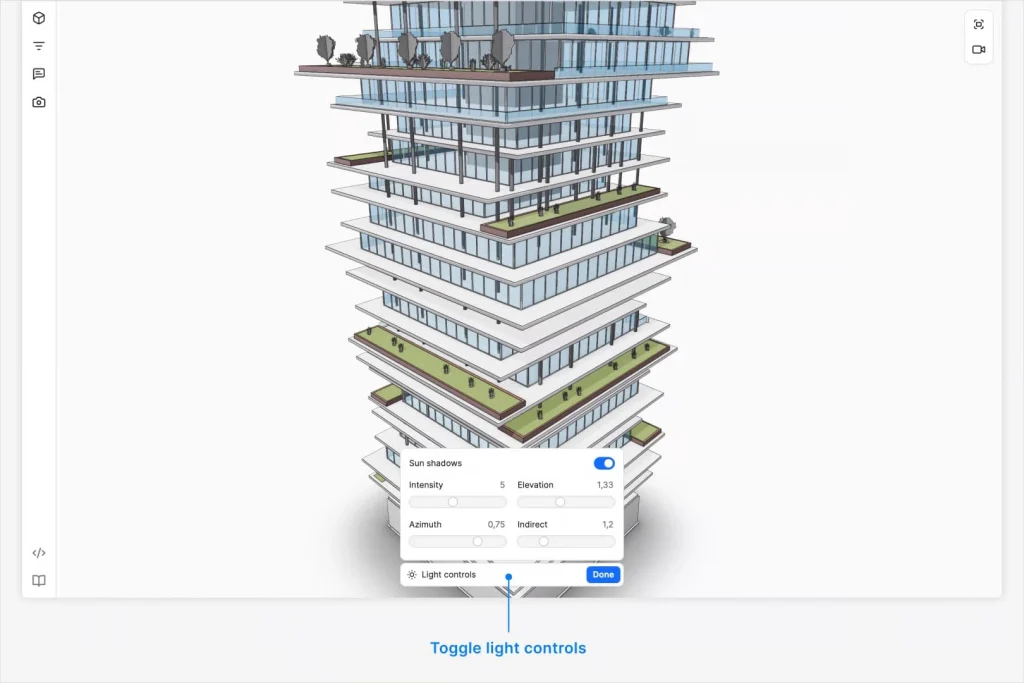
Complementing the AI features is Viewer 3, a completely new WebGPU-based 3D viewer that is now the default experience in the Speckle web app. Built specifically for Speckle’s updated data format, it loads geometry from compact per-version artifacts rather than the older object stream and draws all panel data (properties, tree, filters) from the same unified data layer used across the platform. Existing capabilities have been carried forward while many new strengths have been added.
Faster Loading Designed for Large Models
Loading has been redesigned for speed and scale. A hybrid approach streams geometry over a dedicated connection while the full artifact downloads in the background, allowing large models to begin appearing on screen before the download finishes. Once downloaded, the model is cached locally so subsequent opens of the same version load from cache first.
Rebuilt Scene Explorer and Bidirectional Selection
The scene explorer has been rebuilt to match the hierarchy published by the source application. It handles very large models through lazy row rendering and materializes only visible rows, preventing freezes when expanding massive containers. Selection is bidirectional: picking objects in 3D highlights and reveals the corresponding tree rows, and selecting rows highlights the geometry. Right-click context menus are available both on the canvas and in the tree.
Smarter Selection, Inspection, and Filtering
Selection and inspection tools are more intelligent. Multi-selections are grouped by hierarchy, related objects are surfaced, property groups expand automatically, and source-specific noise (such as dense Revit material quantity blocks) is condensed into readable rows.
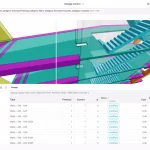
A deeper model inspector provides an elements table with a master-detail layout, per-object geometry statistics (vertices and faces), and filter chips that narrow the table when clicked. Double-clicking zooms to the object. Queries are optimized to remain responsive even on extremely large models. Parameter values can now be edited directly from the viewer via the parameter updater.
Property filters are stricter and more powerful. Numeric equality tolerates floating-point noise, multiple numeric values can be applied at once, and conditions support negation and “has a value” checks. Filter state is robust, surviving panel and selection changes. Coloring the model by property remains a first-class action and can be triggered from the AI chat.
Flexible Panels, Tools, and True 3D Markup
The viewer interface uses a flexible dockable panel system. Panels can be dragged into labelled tab groups, split, collapsed, or resized, with consistent close behavior. A sidebar icon strip switches panels, the status bar consolidates load progress, toasts, and a grid toggle, and a Settings menu gathers options. The layout is responsive: on narrower screens the sidebar becomes a slide-over and chat becomes an overlay. First-time visitors see the Selection panel open by default so the canvas is never empty.
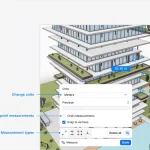
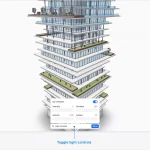
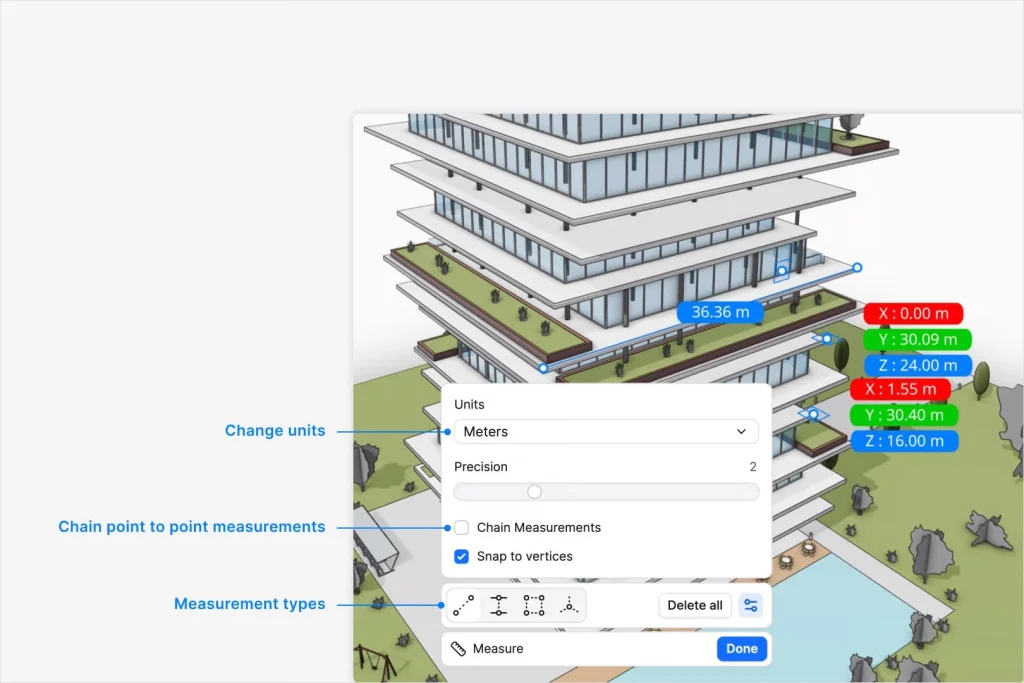
New and improved tools include sketch, measure, and section capabilities. Measurements are session-only, while sketching respects saved-view permissions. Sectioning has moved from a single fixed six-sided box to individual section planes that can be placed wherever needed for greater flexibility. A navigation cube aids orientation, keyboard shortcuts are available throughout with platform-aware hints and a cheat sheet, and right-click context menus appear on both canvas and scene tree.
Markup has been elevated into true 3D space. Sketches and measurements are anchored to the geometry itself so they remain correctly positioned as the user orbits, pans, and zooms. Ink is saved with the view it was drawn on, restoring annotations in place when that view is reopened.
Unified Views, Issues, and Model Placement
The Views panel unifies management of published connector views and user-saved views. Views are scoped to currently loaded models; model views can be converted into saved views, and saving is permission-gated. An Issues panel lists project issues alongside the model; opening an issue restores the exact camera, filters, and visibility state in which it was created. Federated models can now be positioned relative to one another in the scene. Model preview images and videos are generated by Viewer 3 itself, ensuring thumbnails accurately reflect the viewing experience.
New Integrations and Expanded Data Pathways
Beyond the core platform, Speckle has moved its connectors, file importers, and cloud integrations to a new object model. The result is faster publishing and loading, support for much larger models, and richer data that includes relationships between elements, what hosts what, which room contains an object, and how components connect.
New data pathways include a beta integration with Trimble Connect that lets users browse projects and automatically sync supported files (IFC, Revit, Navisworks, SketchUp, AutoCAD, Civil 3D, DGN, Rhino, and Tekla Structures) as Speckle models. Sync pauses and notifies users if files move, are deleted, or connections expire. The ProjectWise integration now supports on-premises servers in addition to the cloud, discovering datasources, handling multiple connections, and keeping selected files in sync.
MicroStation and OpenRoads DGN files can be imported via upload or cloud integration, preserving linework as curves, cells as instances, reference attachments, terrain models, levels, properties, Item Types, materials, and civil data such as feature definitions, quantities, and corridors. A new connector for Tekla Structural Designer 2027 publishes members, slabs, walls, properties, and analysis results (users select load cases, combinations, and result types).
Improved Reference Point Coordination and Power BI Support
Reference-point coordination in Revit has been refined. Geometry is now published in Revit’s internal coordinates with an attached placement record that consumers apply at load time. This allows a single publish to support multiple datums without republishing. A new Apply Transform toggle provides optional legacy behavior. The viewer includes a placement picker for switching between Internal Origin, Project Base Point, Survey Point, and Shared Coordinates. Receive behavior in Revit remains consistent, with automatic handling of previously baked transforms.
Power BI users benefit from a rebuilt data connector and 3D visual. The connector now supplies compact Objects, Properties, and Relations tables instead of one massive flat table. Users choose which properties to expand, and Relations expose connections such as levels, rooms, systems, and hosts. A model with 3.35 million objects that previously crashed now loads successfully. The 3D visual streams geometry on demand, handles large filtered selections without silent sampling, and supports per-category color overrides. Legacy reports continue to refresh.
Faster File Imports and Stronger Desktop Connectors
File imports are faster and more resilient. The conversion service handles larger files, skips and reports problematic elements, and provides more accurate progress. Navisworks imports can be up to 40 times faster; a 2.7 GB plant model that once took two hours now completes in minutes.
Revit imports are roughly twice as fast and now include rooms, MEP systems, groups, worksets, and host relationships. Additional source data is preserved across formats: annotations, block attributes, pipe connectivity, and corridors in DWG and Civil 3D; components, tags, and materials in SketchUp; zipped model folders with catalogs in Tekla Structures; pipe geometry and selection-tree hierarchy in Navisworks; shared coordinates and geolocation in Revit; and improved pipelines for Rhino and OBJ.
Desktop connectors have also been strengthened. AutoCAD, Civil 3D, and Plant 3D improve text and large-mesh round-tripping, placement settings, property sets, and polyline elevations. Blender supports more native object types, custom properties, and collection instances while preserving materials and NURBS on load. ETABS includes analysis results and frame-to-joint connectivity.
Grasshopper gains new Publish, Load, and Explore components that expose relationships and results. Revit improves Rhino geometry loading, group nesting, views, placement data, and reload behavior. Rhino better preserves hatches, nested blocks, groups, named views, attributes, and n-gons. SketchUp is faster, works with models from any connector, and avoids duplication on reload. Tekla Structures keeps bolts, rebar, and sub-parts attached to their parents rather than flattening them.
A Stronger Platform for Modern AEC Teams
Collectively, these updates make Speckle a more capable platform for teams dealing with complex, multi-disciplinary models. The AI assistant turns published data into actionable insights and shareable reports; the new viewer delivers performance and usability at scale; and the expanded integrations reduce friction when bringing data from popular design and analysis tools.
For AEC professionals seeking to reduce manual checking, accelerate decision-making, and maintain a single source of truth across project versions, Speckle’s latest release offers a substantial step forward.