

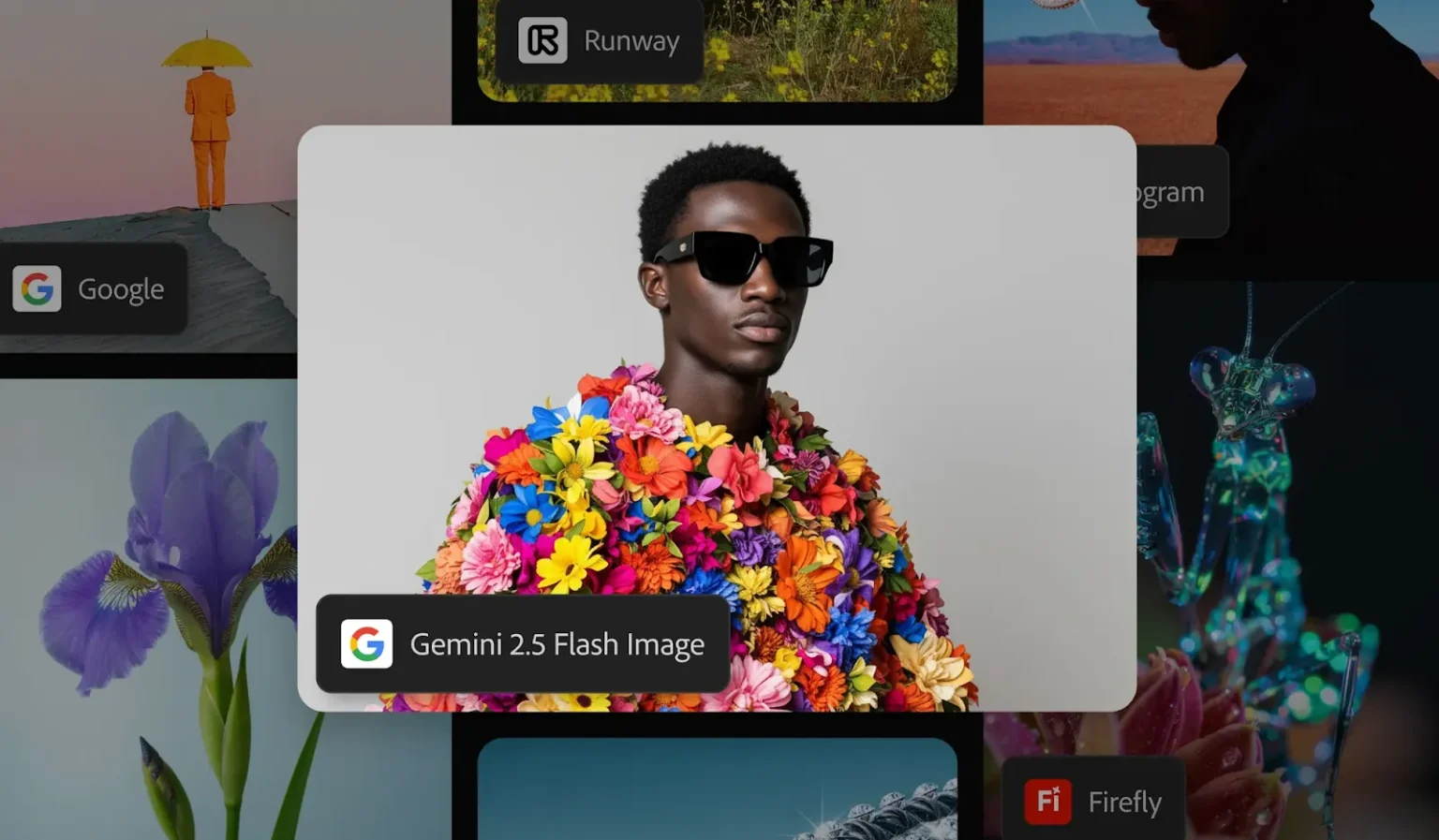
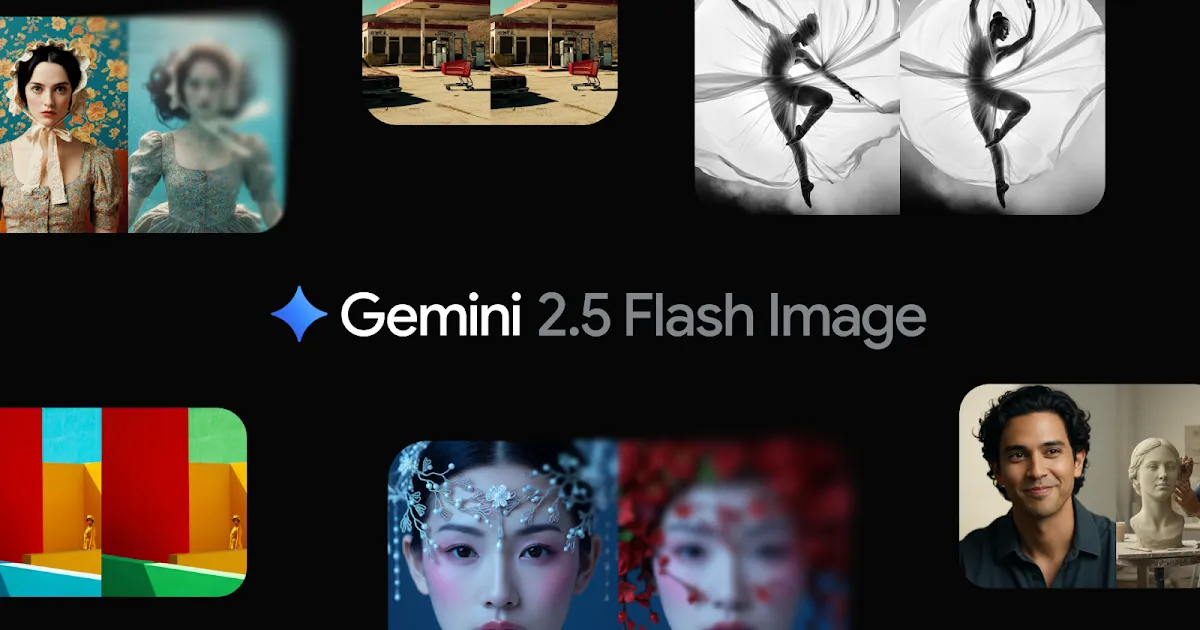




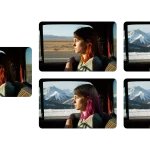
Adobe has officially integrated Google’s Nano Banana AI model, technically part of the Gemini 2.5 Flash Image family, into Photoshop, marking one of the most significant collaborations in the digital imaging space in recent years. Placed as a complement to Adobe’s own Firefly models, Nano Banana is designed to excel at high-precision photo editing, modification, and consistency-based image manipulation.
What Is Nano Banana?

Google Gemini 2.5 Flash Image (also known as “Nano Banana”) is a new image model known for precise, text-based edits and strong prompt accuracy. It is Google’s next-generation image AI, optimized not for generating brand-new pictures from scratch, but for editing and enhancing existing photographs with extraordinary accuracy. Unlike earlier AI tools, which often introduced artifacts or struggled with stylistic coherence, Nano Banana has been engineered for structural fidelity, keeping lighting, texture, and context consistent while applying edits.
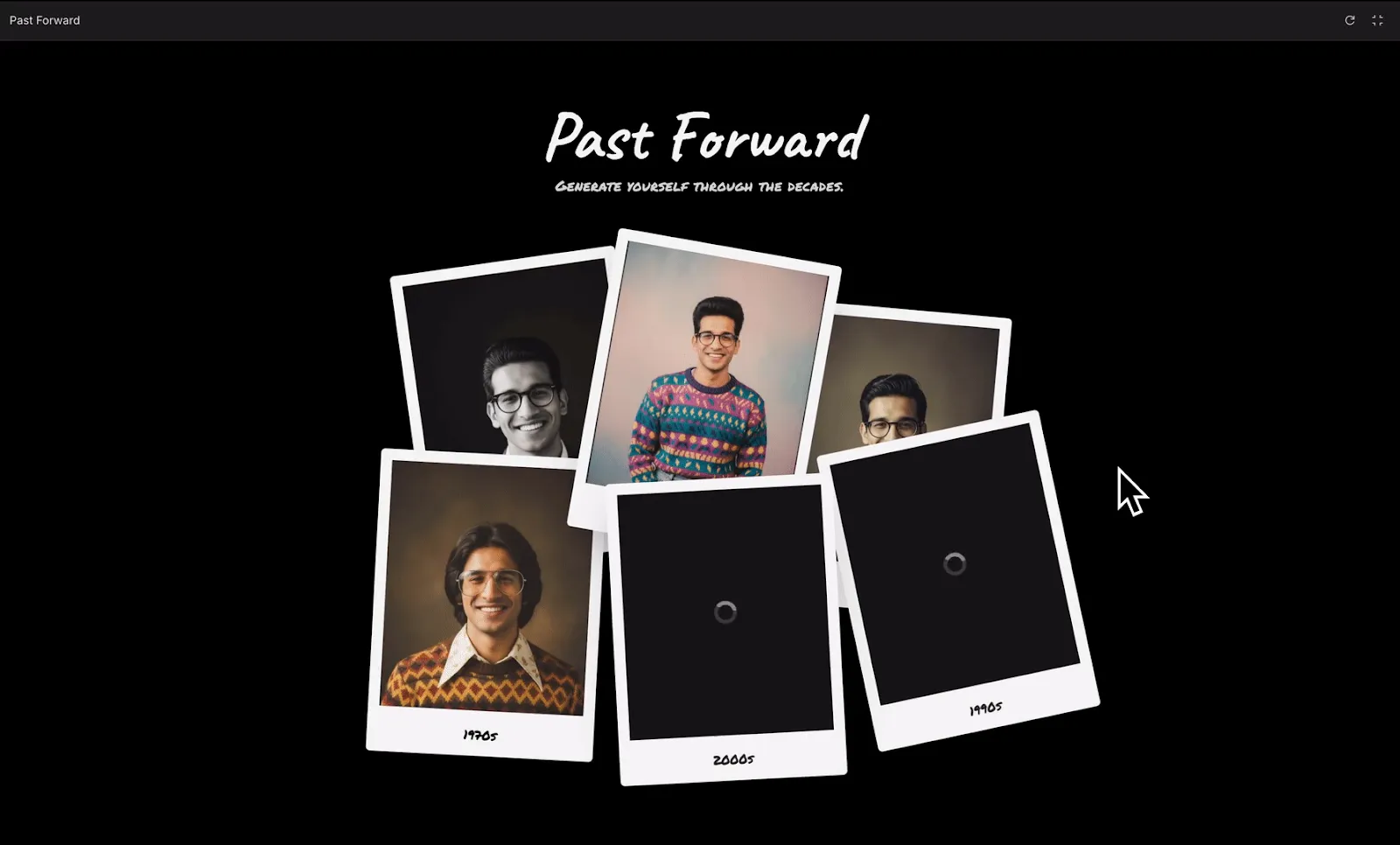
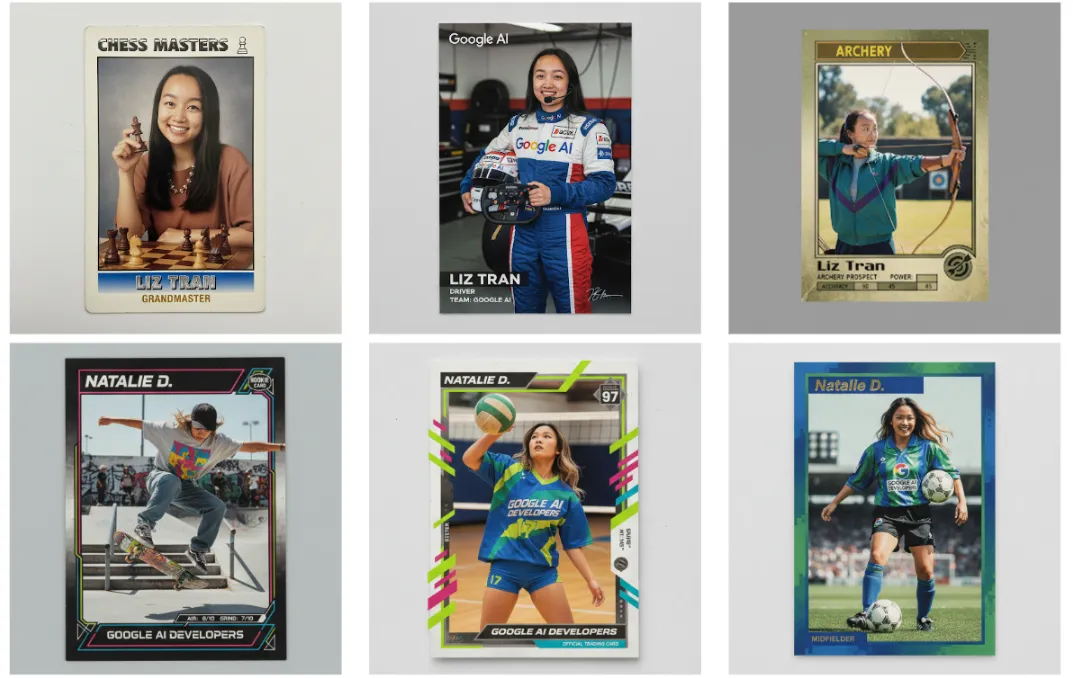
Adobe confirmed on its official Firefly partner page that Nano Banana is now available as an optional tool inside Photoshop, alongside Firefly. Its strongest use cases include:
- Generative Fill enhancements: Expanding or removing objects seamlessly.
- Contextual editing: Adjusting portions of an image while maintaining visual harmony.
- Reliability at scale: Delivering consistent results across multiple edits, which is particularly valuable for professional design workflows.
Adobe Photoshop and the Nano Banana Partnership
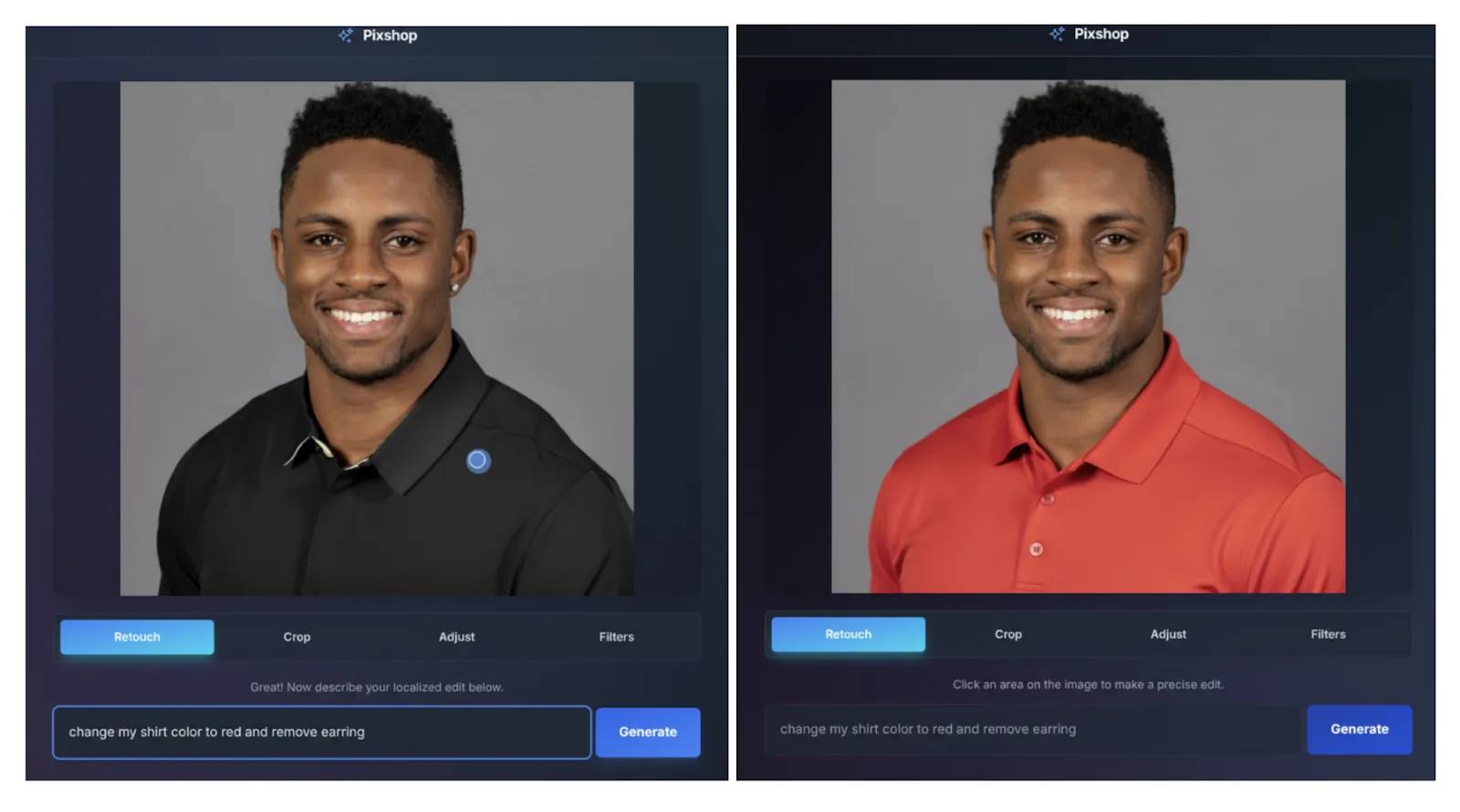
Photoshop is no stranger to AI-powered creativity. Adobe Firefly, its in-house model suite, already powers features like generative fill and text-to-image synthesis. However, as noted by The Decoder report, Nano Banana achieves a higher level of reliability in maintaining detail and realism, sometimes outperforming Firefly when it comes to subtle photo edits.
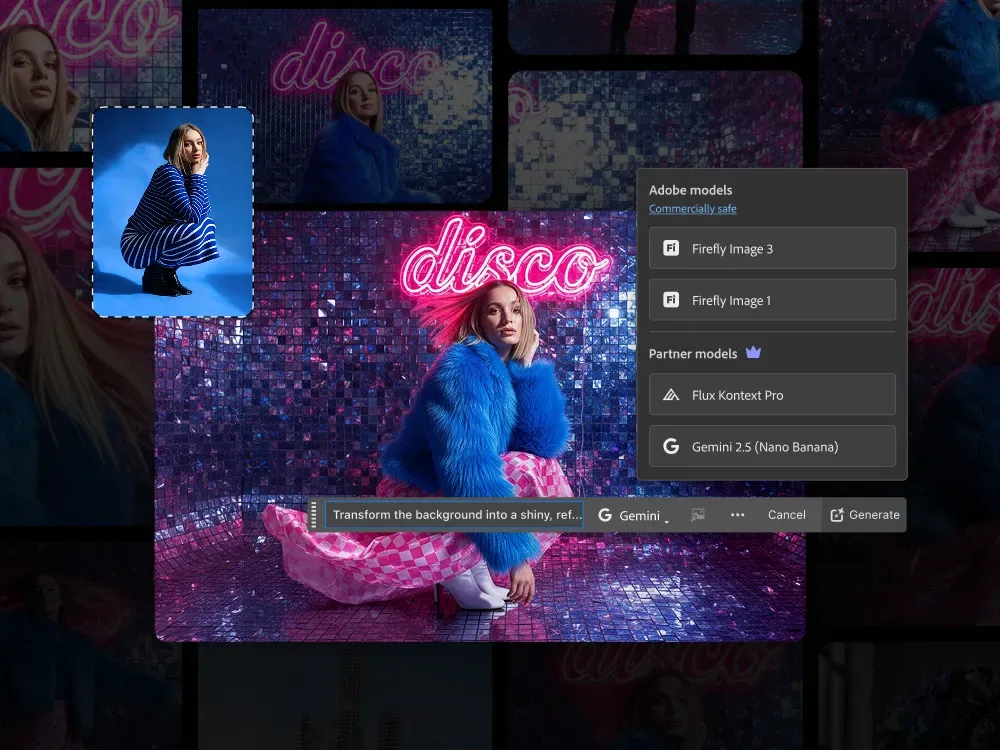
Adobe’s decision to partner with Google demonstrates a hybrid architecture approach. Firefly remains central for Adobe-native features, while Nano Banana offers an alternative model choice for Photoshop users who need Google’s editing strengths. This mirrors Adobe’s broader strategy of giving creators flexibility with multiple AI backends.
How to Add Nano Banana in Photoshop
As of its September 2025 rollout, Nano Banana is available as part of the Creative Cloud Photoshop update. To access it:
- Update Photoshop to the latest version through the Creative Cloud app.
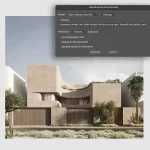
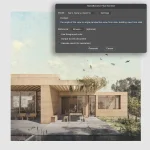
- Navigate to Preferences > Generative AI Models (newly added in the update).
- Enable Google Gemini Nano Banana under partner model options.
- Restart Photoshop to activate the model.
Adobe positions Nano Banana as opt-in, meaning users can choose whether to rely on Firefly or switch to Nano Banana depending on the task.
How to Use Nano Banana in Photoshop
Once enabled, Nano Banana integrates directly into existing workflows:
Generative Fill: Simply select an area with the lasso or marquee tool, then trigger Generative Fill. Nano Banana will process the edit, aiming for highly realistic completions.
Smart Object Adjustments: For layered workflows, Nano Banana respects Photoshop’s non-destructive editing system, ensuring edits can be toggled or revised later.
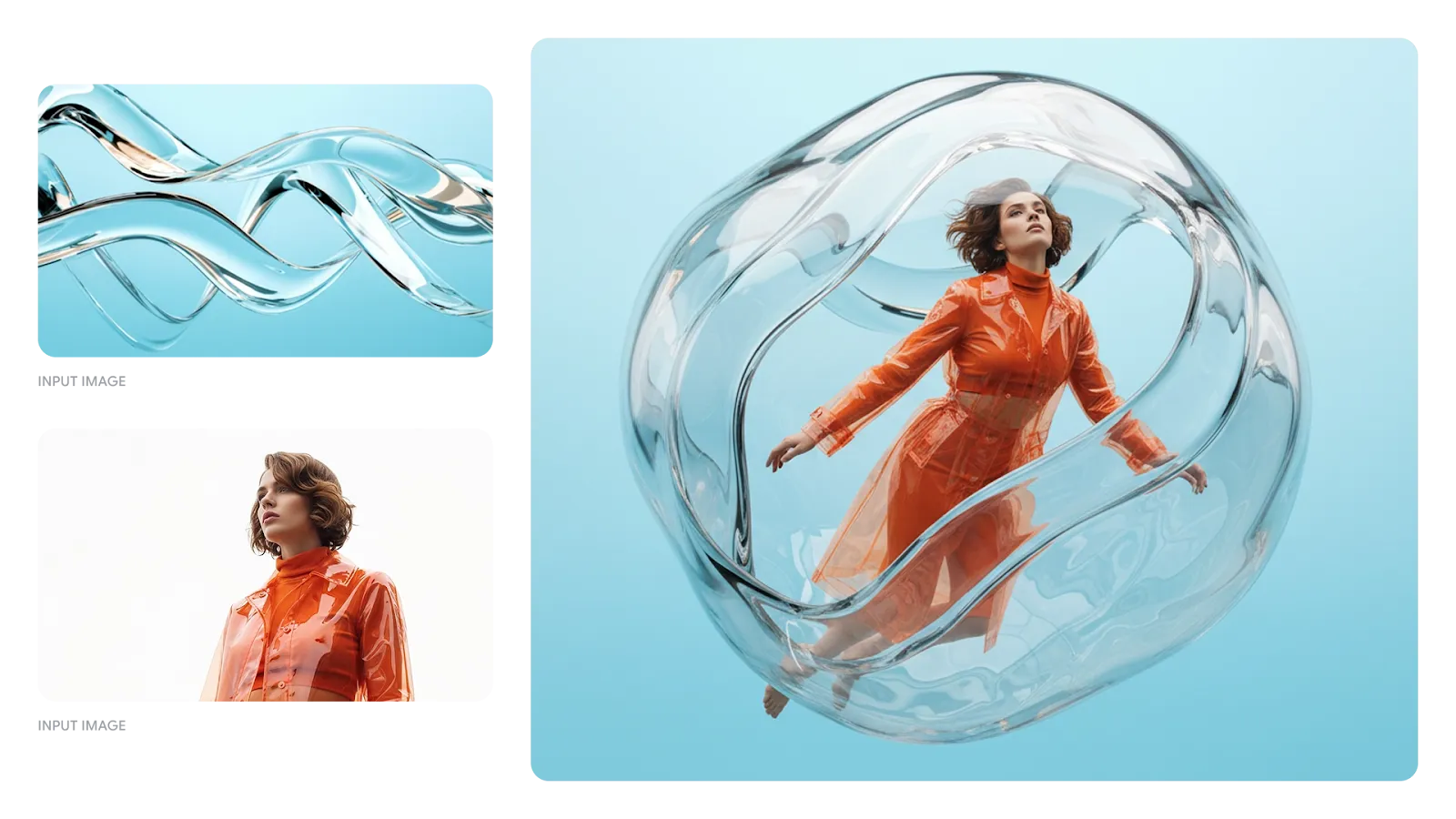
Consistency Mode: A unique setting powered by Nano Banana, allowing users to apply multiple edits while maintaining visual uniformity across the entire composition.
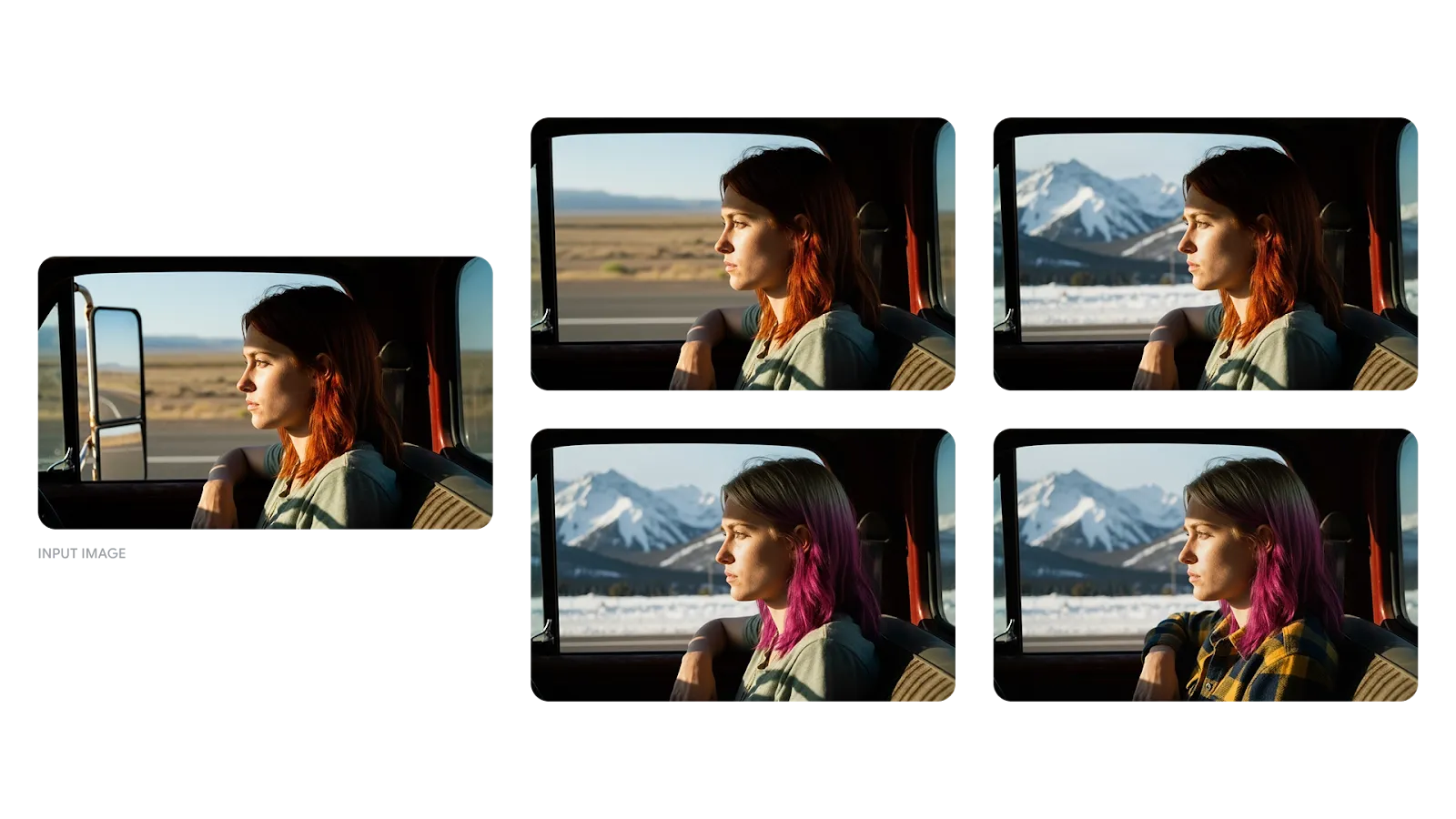
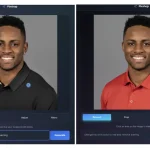
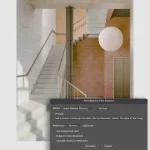
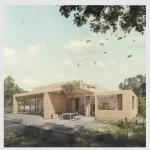
In side-by-side demos, Nano Banana has shown superior handling of complex textures like skin, fabrics, glass, and even architectural elements such as concrete or polished wood. This makes it especially useful not only for creative photography and design but also for fields like architecture, where designers can quickly stage interiors, add human figures for scale, or extend background landscaping in renderings—all while maintaining realistic detail and perspective.
Use in Architecture (Adding Furniture, People, Context)
In architecture and interior visualization, Nano Banana inside Photoshop can be a powerful post-production assistant. Here’s how architects, interior designers, and visualization artists might use it:
1. Furniture Insertion & Staging
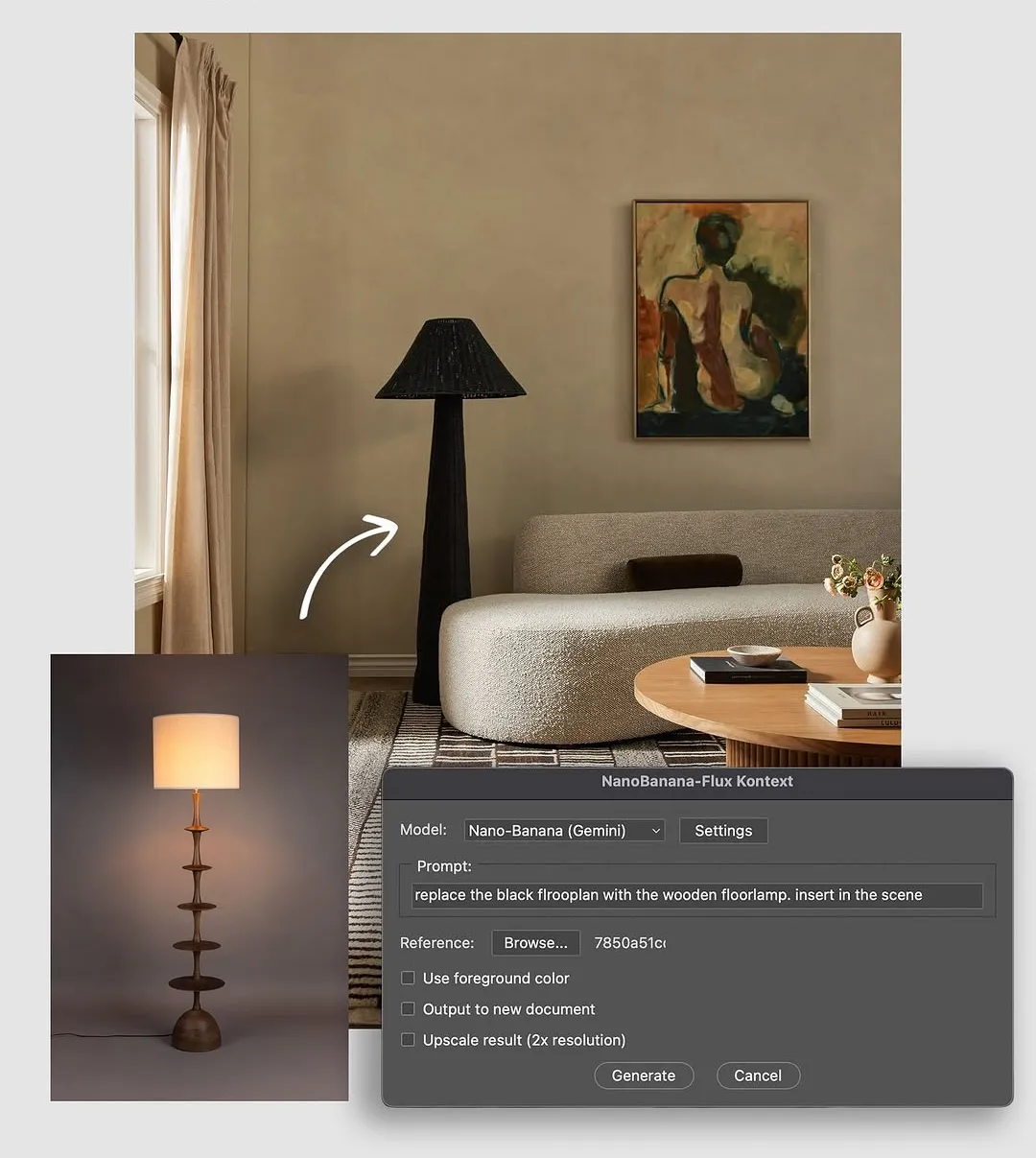
You have a base render or ambient photo (an interior or exterior shell). You can:
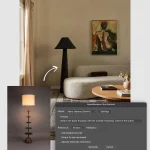
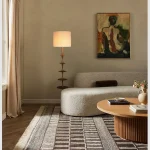
- Select an area (e.g., empty living room, terrace) and prompt: “Add a mid-century modern sofa with a walnut frame and cream upholstery, oriented facing the window.”
- Or ask: “Add a round coffee table with a glass top and metal legs, plus two accent chairs on either side.”
- Because Nano Banana understands spatial context (depth, perspective, and lighting), it can place the furniture so shadows, scale, and alignment appear natural. Indeed, one use case described in a blog shows dragging a product image into a scene and letting the model fuse it into the existing environment.
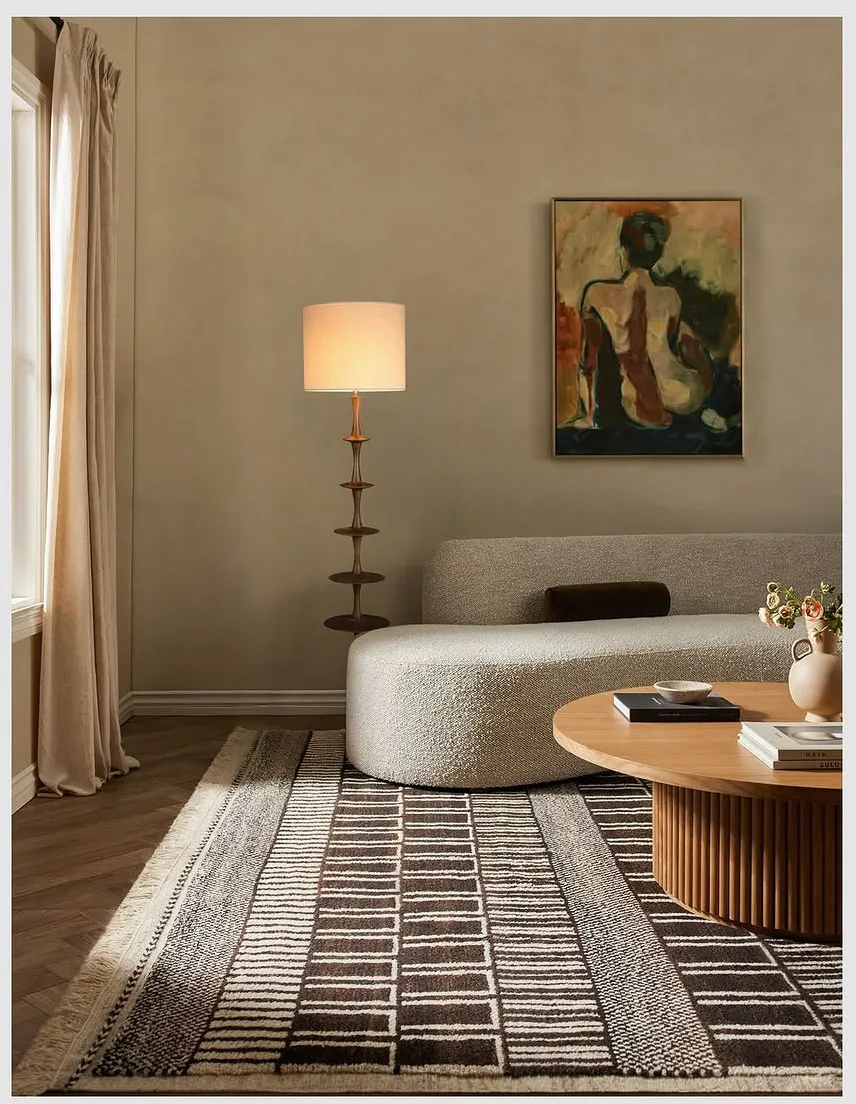
This saves a lot of time relative to purely manual compositing (cutting, masking, matching shadows) or re-rendering from 3D every time you want to try an alternate furniture layout.
2. People / Human Figures & Activity Scenes
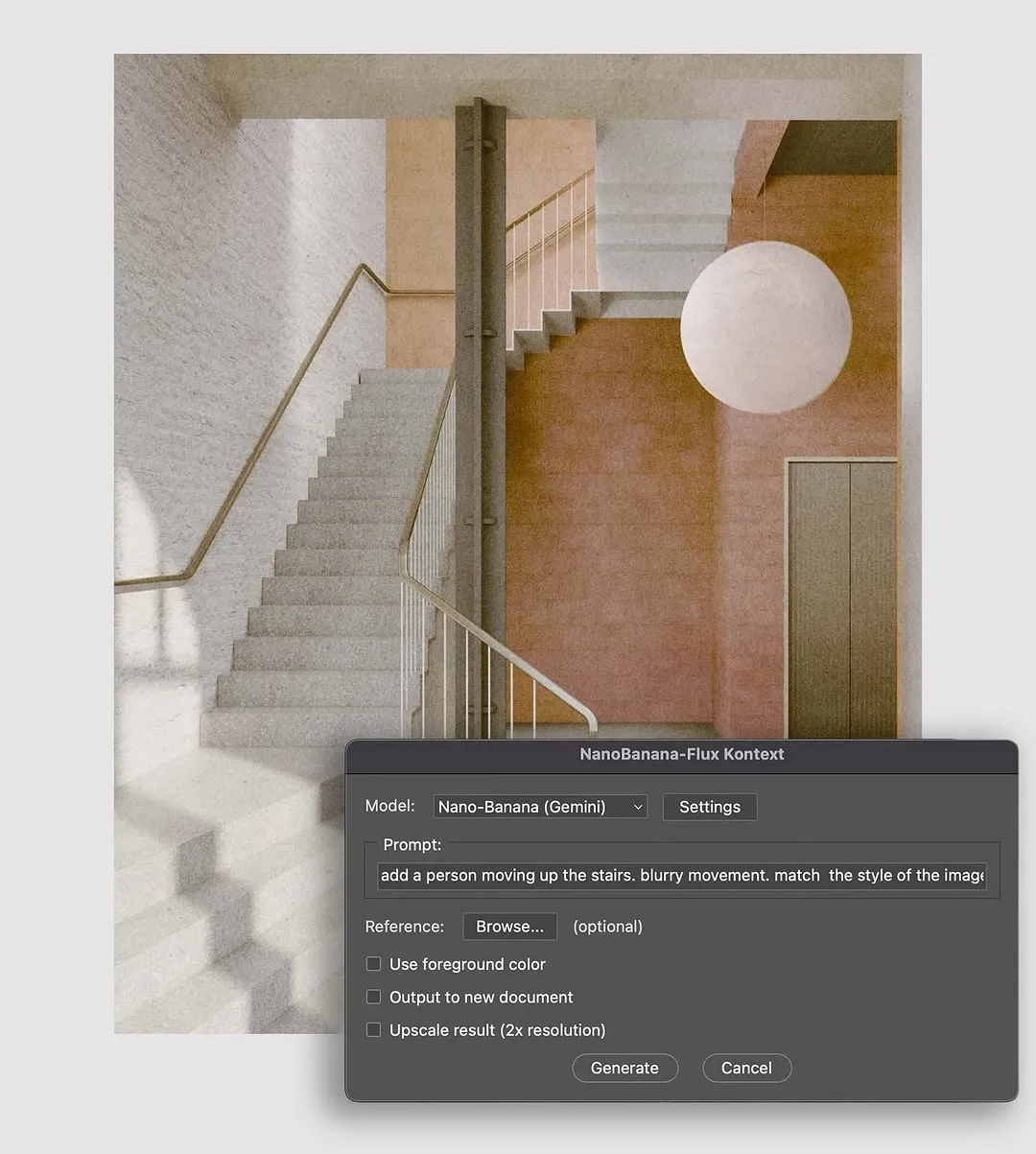
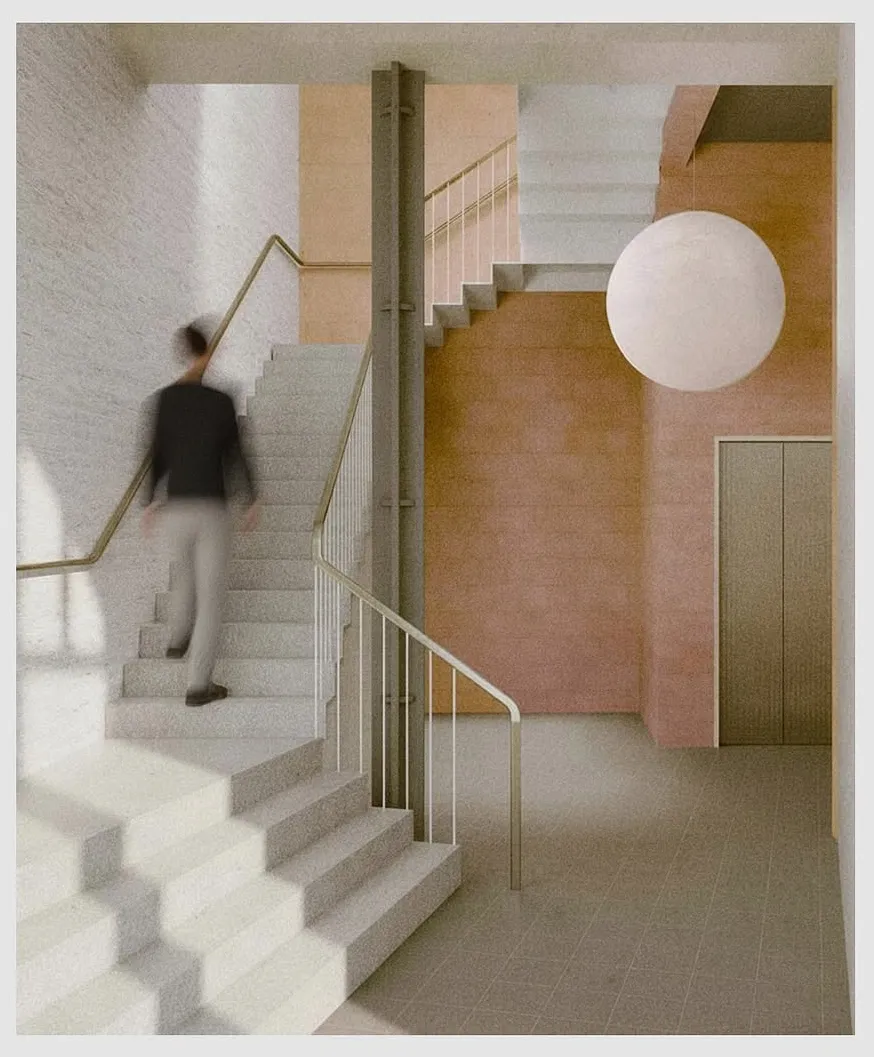
Renderings often need human presence to provide scale and life:
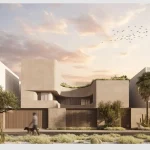
- You can select blank zones (e.g., walkway, lounge zone) and ask, “Insert two people seated conversing, a woman reading a book, and a man on a smartphone.”
- Nano Banana will attempt to place them in plausible postures, with lighting that matches the scene, and preserve overall coherence.
- Because of its “character consistency” strength (maintaining identity across edits), if you insert the same figure in multiple shots, it should remain visually consistent.
3. Landscaping, Context & Background Extensions
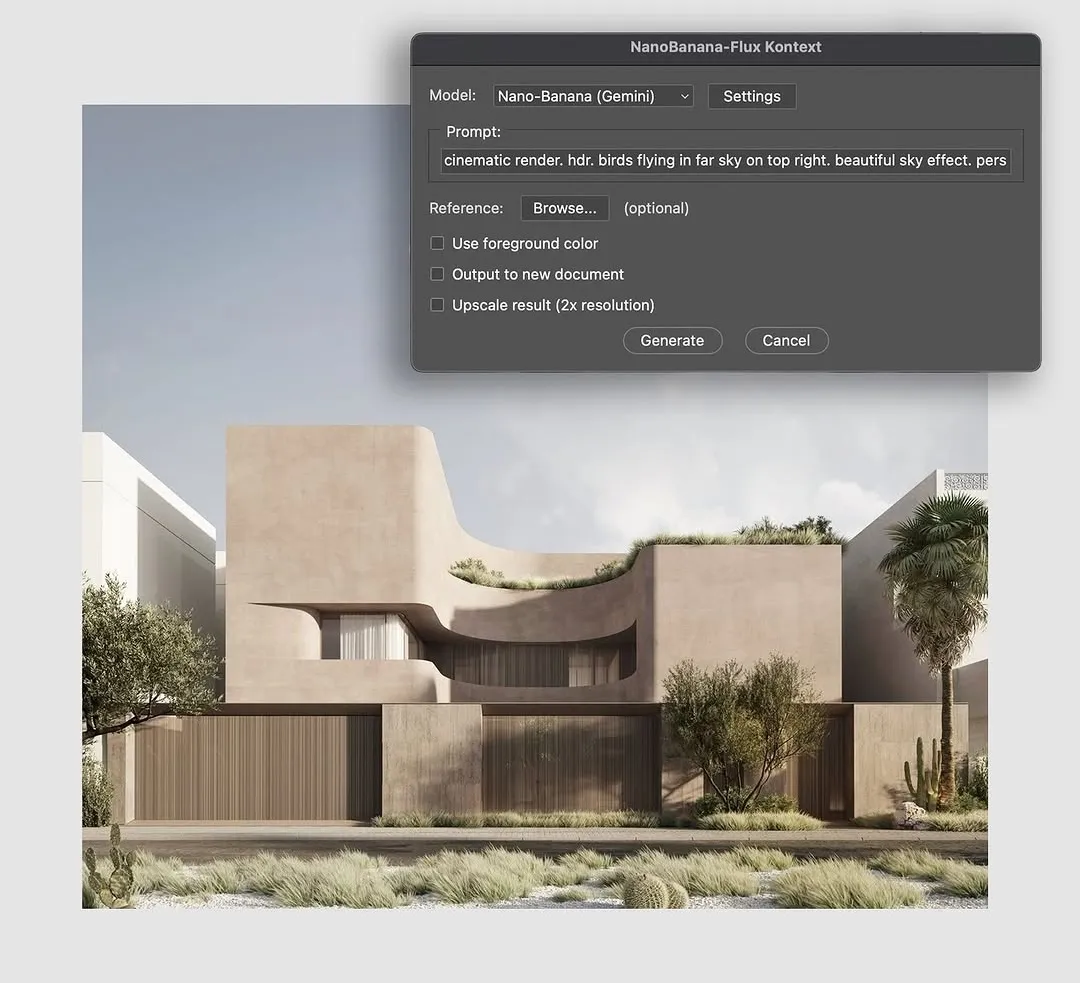
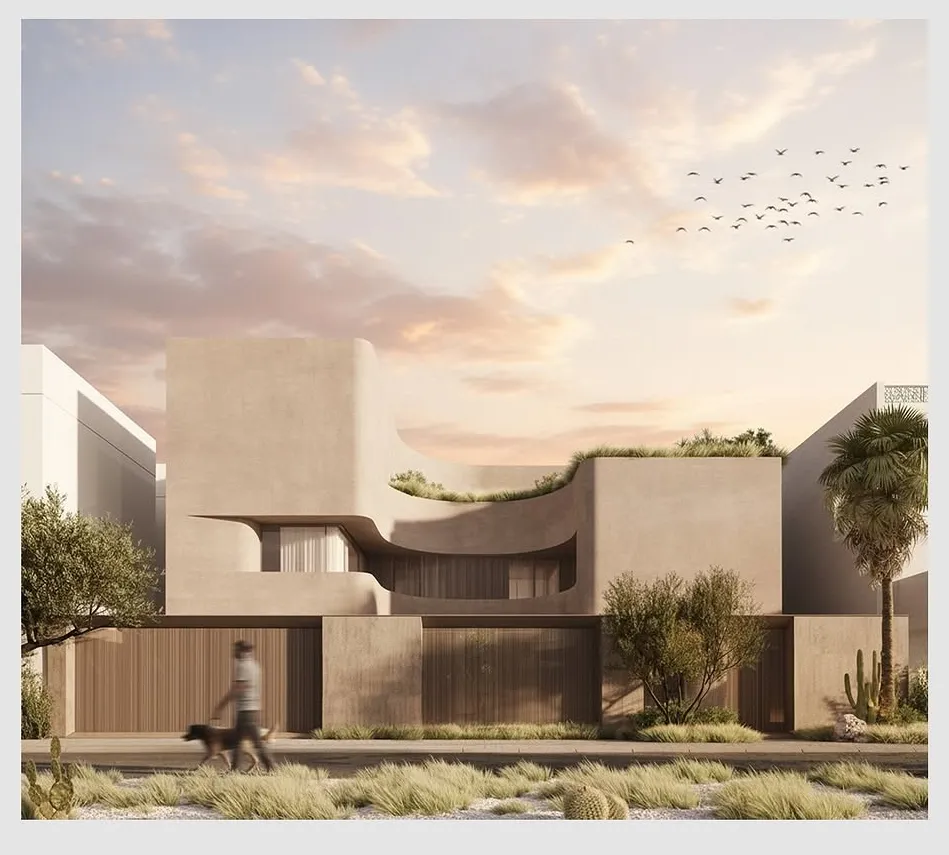
Often architectural renders are cropped—or need context (trees, adjacent buildings, sky, pathways). Nano Banana can:
- Outpaint/extend backgrounds: extend the sky, continue trees or context, or expand a courtyard.
- Add hardscape or softscape elements: “Add paving stones leading from the terrace to a garden,” “Insert shrubs or low hedges along the boundary.”
- Scene blending: match lighting, atmospheric depth, and color tone so added elements don’t look pasted.
- Iterative prompts allow you to build complexity gradually (e.g., add plants, then people, then lighting accents).
4. Material/Lighting Adjustments
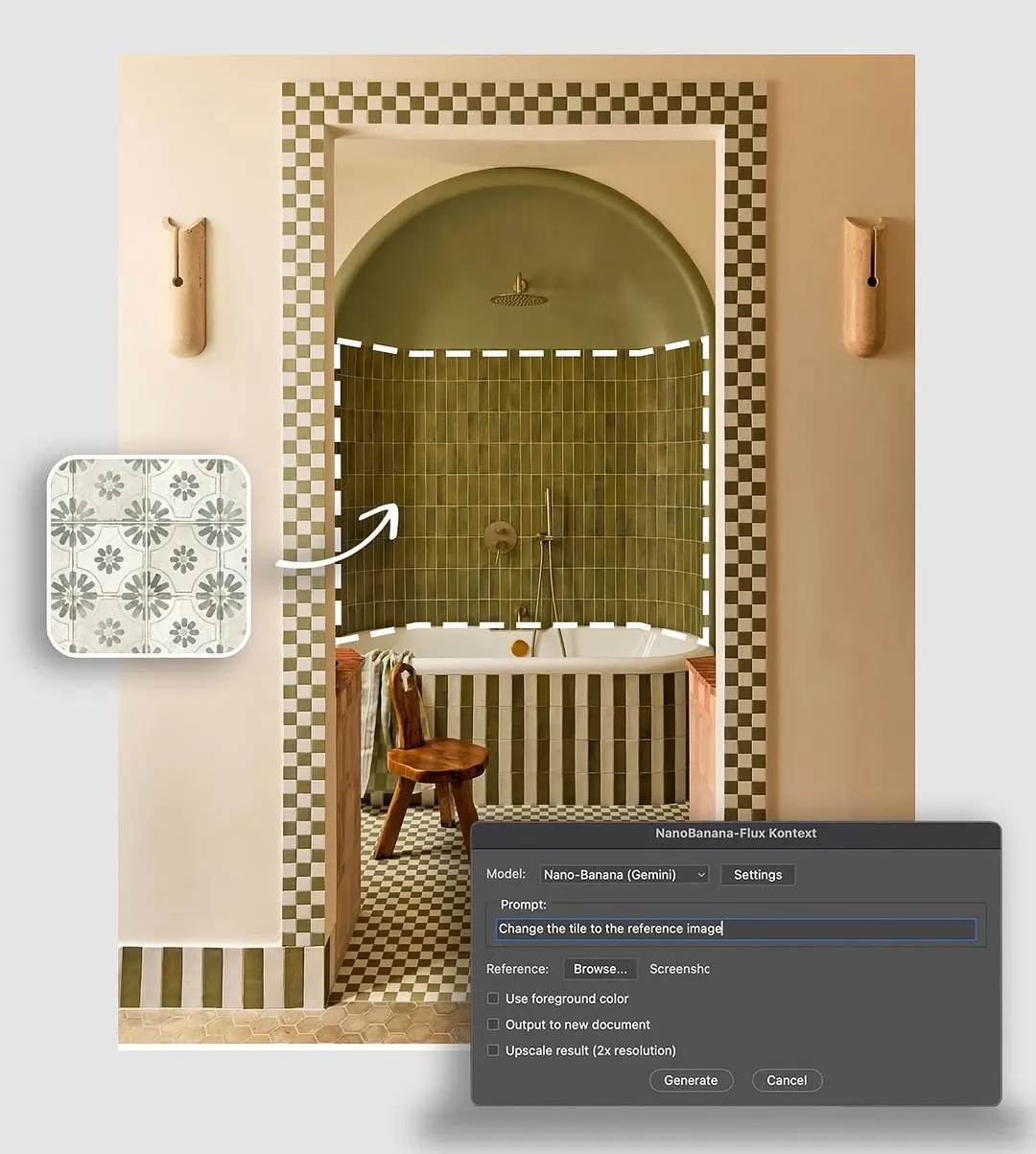
Even after 3D renders, images often require post tweaks:
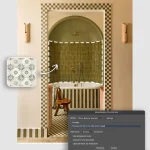
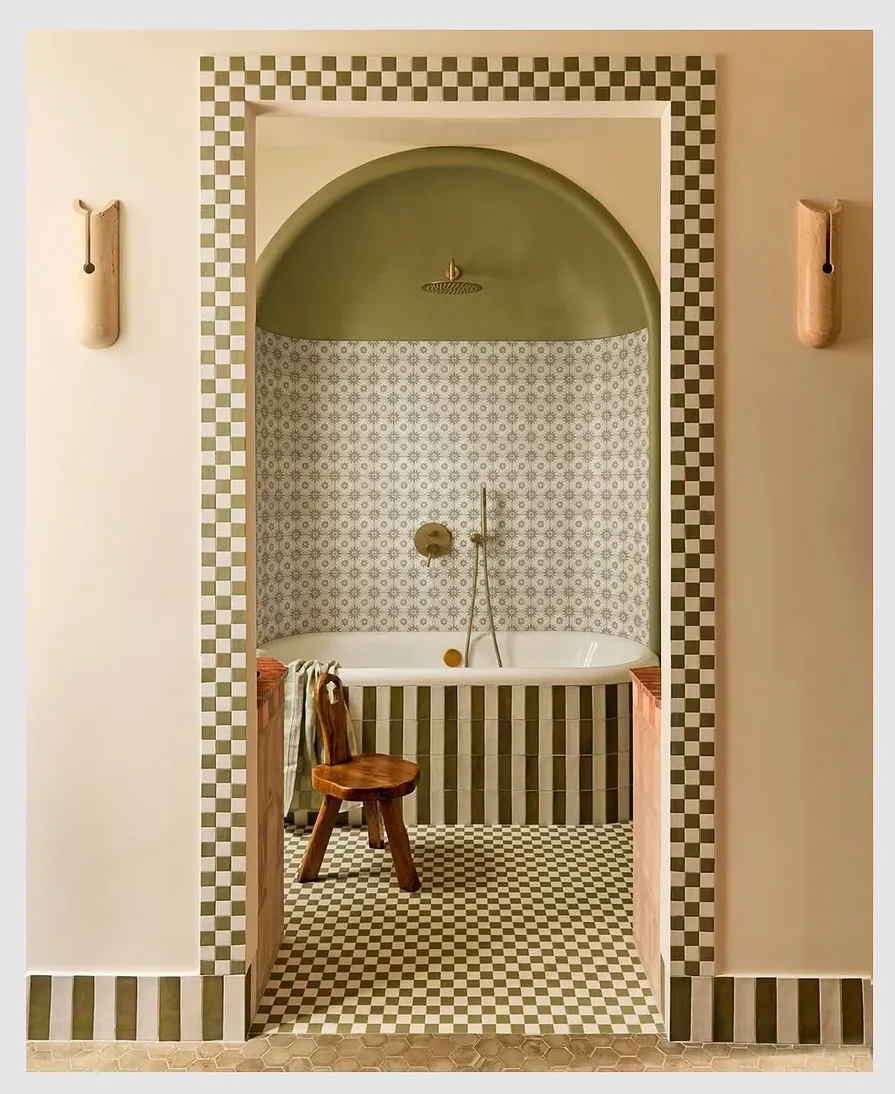
- “Change the floor tile to a lighter travertine, and maintain grout lines.”
- “Make the interior lighting warmer from the side lamp area, and add subtle ambient reflections on glass.”
- These kinds of edits can be done without re-rendering, saving time, especially when the 3D file is heavy or complex.
5. Consistency Across Multiple Views
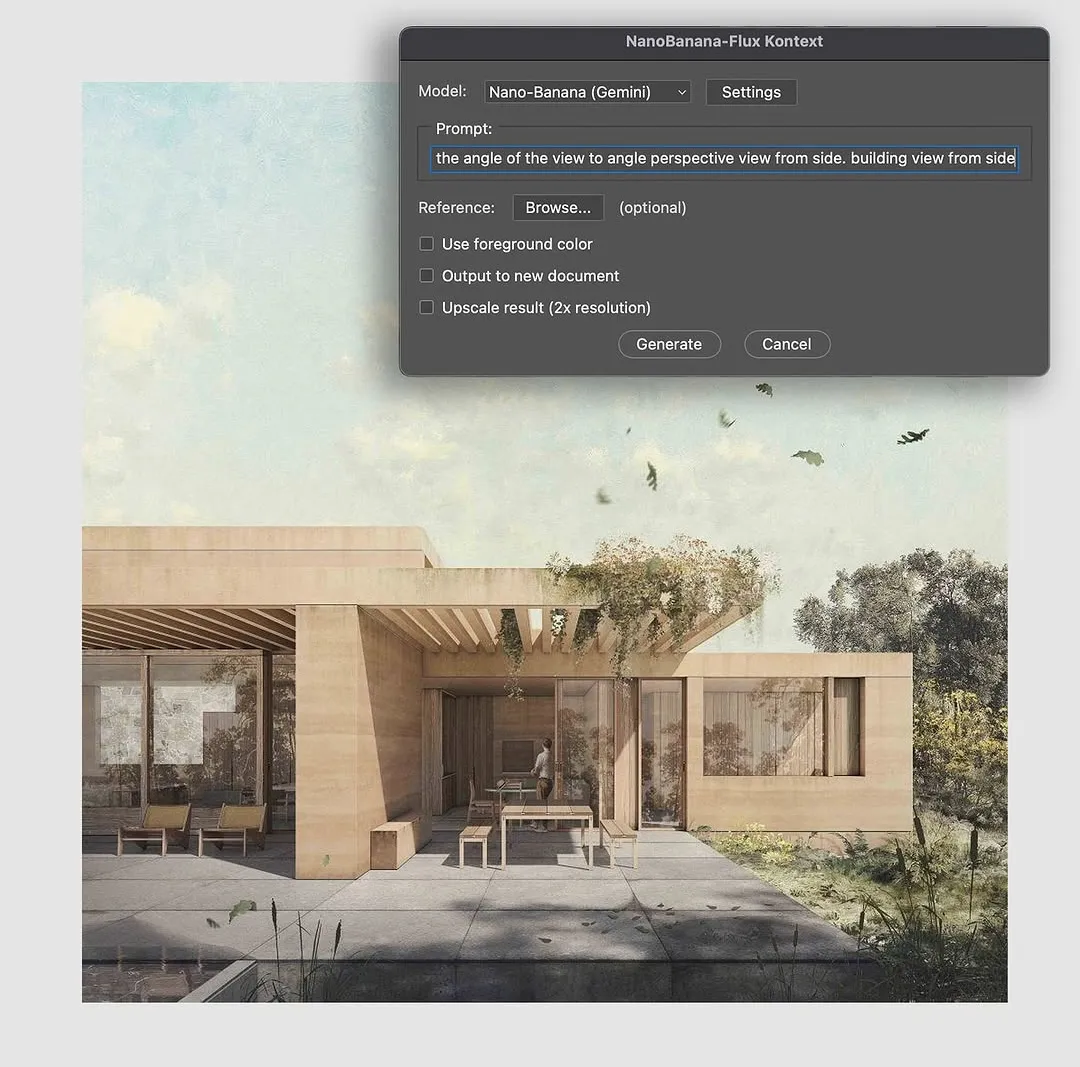
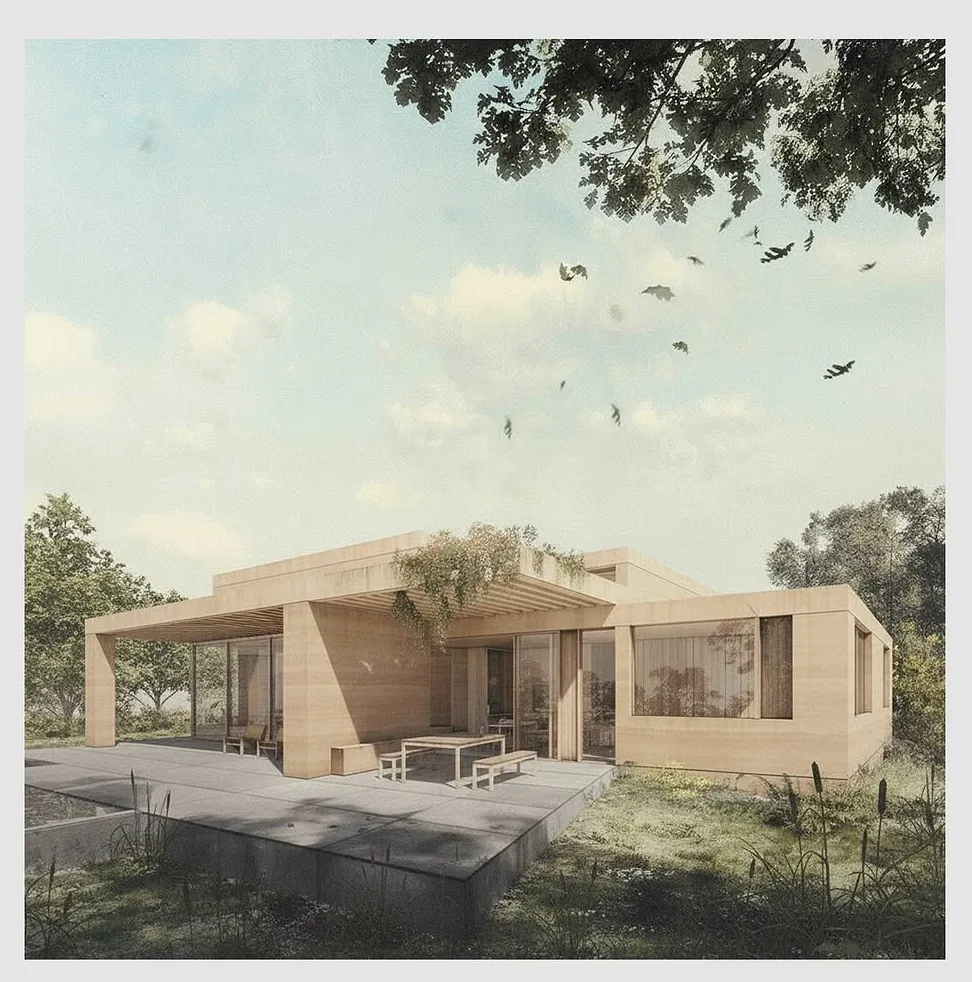
One challenge in architectural presentations is keeping design coherence across multiple views—facade, plan view, perspective interior, etc.
- Because Nano Banana emphasizes identity preservation and scene consistency, it can help ensure that a façade element or material style stays visually consistent when you make changes in one view and want to sync them across others.
- For example, if you change a window mullion design in one rendering and then request the same change in another angle, the model will better maintain continuity.
6. Rapid Ideation & Client Iteration
One of the biggest wins is speed in iteration:
- Instead of going back to 3D and waiting hours to render alternatives, you can experiment with layout, lighting, furniture styles, seasonal elements, etc.
- Clients can see visual ideas in near-real time. You can present variant options by prompting: “Show Scandinavian-style furniture vs. tropical style.” “Change time-of-day lighting to dusk with golden hour glow.”
Key Considerations
While these capabilities are promising, here are important cautions for architectural professionals:
- Accuracy & scale: Nano Banana is a generative model, not a CAD tool. It may make slight errors in proportions, alignment, or physics. Users on forums note that for critical design decisions, AI output still needs verification or cleanup.
- Spatial/structural logic: The model doesn’t inherently “know” structural rules or building codes. It might place objects in implausible ways unless guided carefully.
- Multiple edit consistency: Despite improvements, there are risks of small style drift across many edits.
- Resolution/output quality: Some edits may reduce sharpness or require upscaling for print-level fidelity.
- Prompt quality matters: the more precise your prompts (style, scale, direction, material), the better the result.
- Overlay vs. full re-render: For fundamental structural changes (e.g., moving walls, altering geometry), you still need to revert to your 3D/BIM stage. Nano Banana is more suited to post-production/augmentation than full architectural modeling.
The Nano Banana in Photoshop is a glimpse of the future of creative software. By merging Google’s precision-driven AI with Adobe’s established creative tools, professionals gain an unprecedented level of control over image editing. Whether it’s refining a photograph for a campaign, retouching portraits, or creatively extending a scene, Nano Banana is poised to become an essential part of the Photoshop toolkit.
The future of creative work blends human skill with AI precision. With PAACADEMY courses, you’ll learn how to harness both—start your journey now.